




Who your emails are sent from
Organizer Guide
3 min read
Help articles may not be fully accurate — they can lag behind the app due to frequent updates and automated translation. If in doubt, please contact support.
On this page
- 1. What gets sent through it
- 2. Common providers
- 3. Good to know
- 4. Troubleshooting
- 5. Related
Unless you say otherwise, every email about your events is sent by EventMann from its own address. Connect your own mail server under Settings → SMTP & Mail and your attendees hear from you. Until you do, your dashboard shows a banner, “Attendees still see EventMann as your sender”, with a Set up sending email button that leads here.
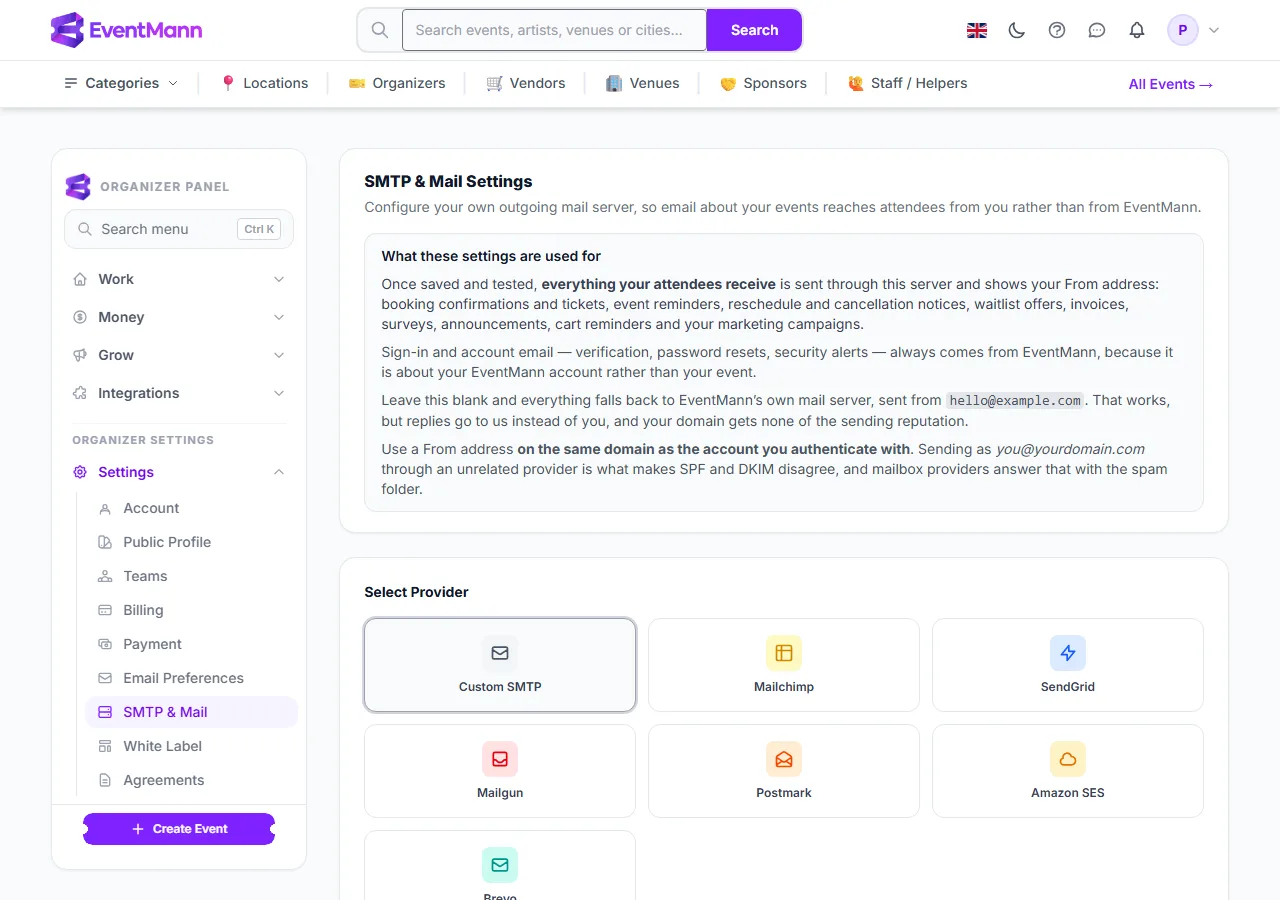
- Open Settings → SMTP & Mail ①.
- Read the box ②. It lists what is sent through your server and what is not.
- Pick a provider under Select Provider ③: Custom SMTP, Mailchimp, SendGrid, Mailgun, Postmark, Amazon SES or Brevo. Each choice shows a short guide for that provider.
- Fill in the connection: host, port and encryption for Custom SMTP, Mailgun and Amazon SES; a user name and password or an API key, as the provider asks.
- Set your From Name and From Email.
- Click Send Test Email. It sends a real message to your own inbox, so you know the connection works. Then click Save Settings.
What gets sent through it
- Sent as you, once configured: booking confirmations and tickets, event reminders, reschedule and cancellation notices, waitlist offers, invoices, surveys, announcements, cart reminders and marketing campaigns.
- Always sent by EventMann: email verification, password resets and security alerts. They concern your EventMann account, not your event.
- If you configure nothing: everything keeps working from EventMann’s address. Replies come to EventMann instead of you, and your own domain builds no sending reputation.
Common providers
| Provider | Host | Port | Encryption |
|---|---|---|---|
| Gmail | smtp.gmail.com | 587 | TLS |
| Outlook / Microsoft 365 | smtp.office365.com | 587 | TLS |
| Brevo | smtp-relay.brevo.com | 587 | TLS |
| SendGrid | smtp.sendgrid.net | 587 | TLS |
| Mailgun | smtp.mailgun.org | 587 | TLS |
| Postmark | smtp.postmarkapp.com | 587 | TLS |
| Amazon SES | email-smtp.[region].amazonaws.com | 587 | TLS |
Good to know
- Use a From address on the same domain as the account you sign in with. Sending as your own domain through an unrelated provider makes the checks (SPF and DKIM) disagree and mailbox providers send the mail to spam.
- Gmail and Microsoft 365 need an app-specific password, not your normal one. Mailgun, Brevo and Amazon SES give you a separate SMTP secret that is not your account key.
- For more than a few hundred emails a day, a dedicated provider delivers far more reliably than a mailbox.
- Saving again without typing a password or API key keeps the stored one. You do not need to re-enter a secret to change the From name.
- If your provider starts rejecting the login, use Use EventMann instead at the bottom of the page. Attendee mail goes out through EventMann again at once, tickets and confirmations keep working, and your settings are kept. Saving the form switches your server back on.
- The same page holds Campaign sending pace and Reminder sending pace. See Sending, progress and unsubscribes.
Troubleshooting
- The test fails with a credentials error — for Gmail or Google Workspace use an App Password; for another provider use its dedicated SMTP secret, not a general API key.
- The test mentions SMTP AUTH — on Microsoft 365 an administrator must enable SMTP AUTH for that mailbox.
- The test cannot connect — check host and port. Use 587 with TLS or 465 with SSL; port 25 is blocked by most cloud providers.
- It connects but encryption seems wrong — match them: TLS with 587, SSL with 465.