




Booking Approvals
Help articles may not be fully accurate — they can lag behind the app due to frequent updates and automated translation. If in doubt, please contact support.
On this page
When an event uses Request & Approve, nobody is booked until you say so. Booking Approvals is the queue of those requests, with one-click Approve and Reject. Find it under Attendees → Approvals; the sidebar shows a number badge while requests are waiting. Turning the mode on is covered in Booking Modes.
What you can do here
- See every request still waiting for a decision: reference, who asked, the tickets, the total and how long ago they asked.
- Approve a request to confirm it.
- Reject a request, with an optional reason.
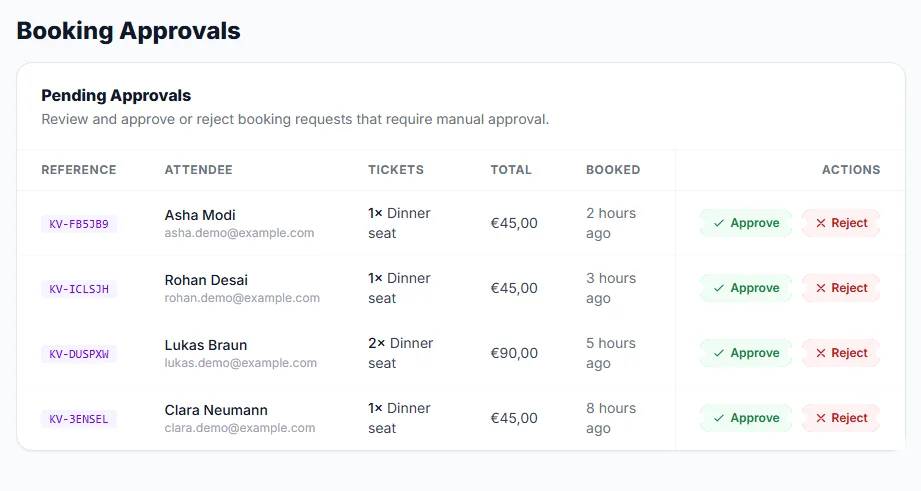
Each row shows the order’s reference ① with the buyer’s name and email beside it. Use Approve ② or Reject ③ at the end of the row. The tickets are added up per ticket type, so an order for three dinner seats shows one line: 3× Dinner seat.
What Approve does
What happens next depends on how the event takes payment.
- Paid event, card held for review (the default). The buyer’s card was authorised when they asked, so no money has been taken yet. Approve takes it (captures the hold) and confirms the order at once; the buyer gets their tickets. There is no payment window to miss, and the seats were already counted when the request came in.
- Free event. Approve confirms the order and emails the tickets.
- Payment-link events (the setting Hold the card while you review is off). Approve moves the order to Approved and emails the buyer a link to pay. They have the Payment Window After Approval you set (30 minutes by default, up to 72 hours) before the order expires and the seats go back on sale.
What Reject does
- Click Reject on the row.
- Optionally type a Rejection reason.
- Click Reject in the dialog.
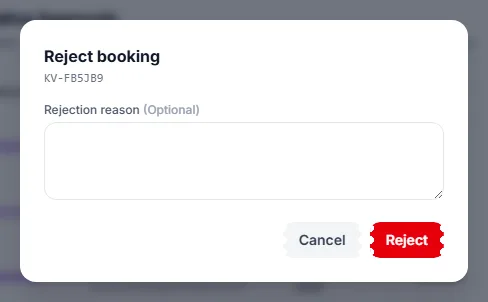
Type the reason in the field ①. For a held card, the authorisation is released so the money is freed at the buyer’s bank, and the seats go back on sale (and to the next person on the waitlist). The buyer is emailed that the request was declined.
Where else you can decide
You can approve or reject from the Orders page (Pending tab, one row or in bulk) and from the order’s own page. All of them do the same thing. Once approved, an order stays on the Orders page’s Approved tab as a record.
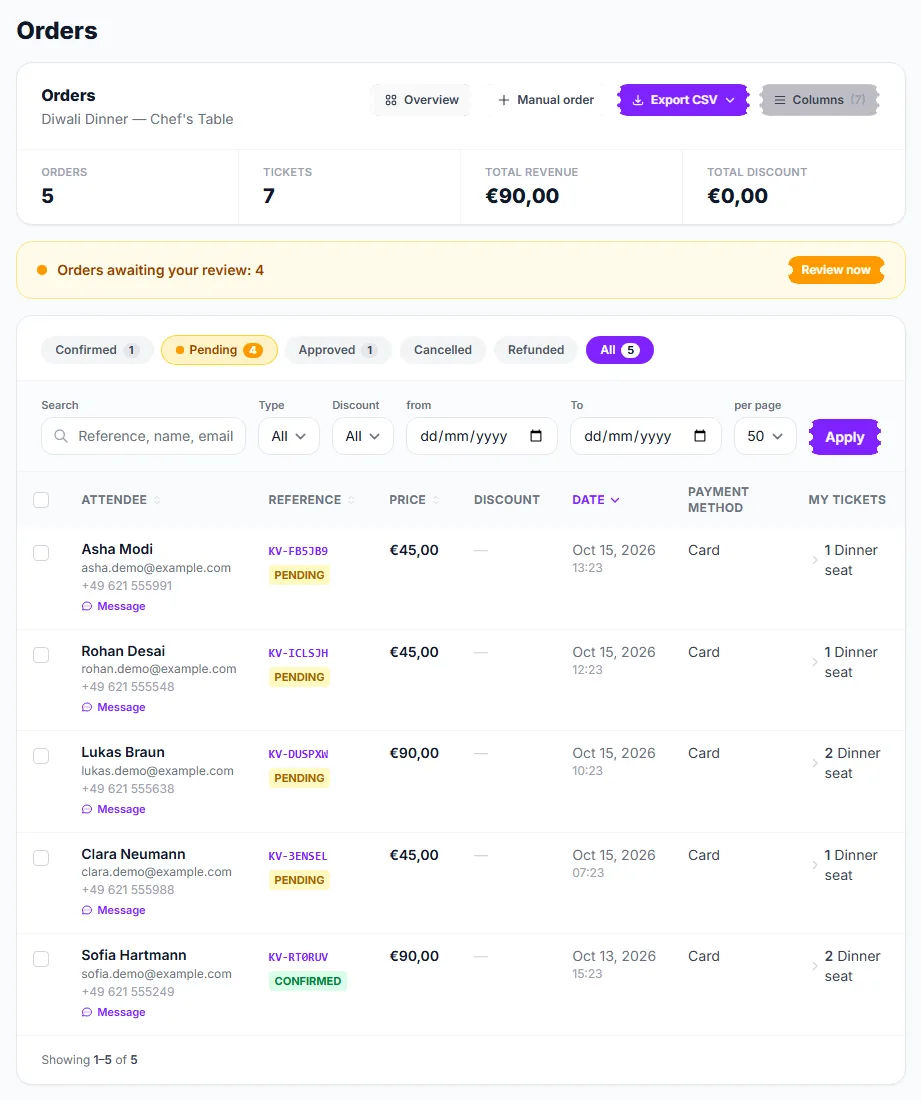
Use the Approved tab ① for everything that ever went through approval, and the Pending tab ② for what is still waiting.
Good to know
- Card holds do not last for ever. A card authorisation lapses after roughly 7 days, sooner on some debit cards. Decide in time: EventMann cancels a hold that is about to lapse and frees the seats, and the buyer is told. If a hold has already lapsed when you click Approve, you see “The payment hold could not be taken. It may have expired — ask the attendee to book again.”
- Only genuine requests appear. A buyer who abandoned the payment page never created an order and is not listed.
- A request already decided in another tab cannot be decided twice: you get a message instead of a second change.
- Deciding needs the orders-desk permission (create bookings), the same one used for manual orders. Box-office team members can have it without full event access.
- Approving does not bypass capacity: a held request already counted its seats, and a free one is checked against what is left.
Troubleshooting
- The queue is empty but I expected requests — check the Orders page: the order may already be decided, or the buyer never finished the payment step.
- Approve says it is sold out — on a free event the places went to someone else in the meantime. Add capacity or reject.
- I approved but the order shows as unpaid — the event uses the payment-link flow. The buyer has to pay through the link, or you can mark it paid on the order page.